Seamless Help Center
1. Welcome to Seamless
What Seamless Is
Seamless is a done-for-you automation and client management platform built on top of Go High Level. It brings your leads, conversations, calendars, funnels, and follow-up into one place so you can stop juggling multiple tools and focus on serving your clients.
Who It’s For
Seamless is designed for coaches, consultants, and service-based businesses who want to:
- Capture more leads without complicated tech.
- Automate follow-up so no lead is forgotten.
- Increase booked calls and show-up rates.
- Simplify operations with one central system.
The Problems Seamless Solves
- Leads slipping through the cracks because follow-up is manual.
- Missed calls and DMs that never get a response.
- Scattered tools for emails, SMS, funnels, and calendars.
- Time wasted on repetitive admin tasks.
- No clear tracking of where leads are in the pipeline.
Key Features
- Unified inbox for SMS, email, and social messages.
- Automated workflows for follow-up and nurturing.
- Pipelines and opportunities to manage your sales process.
- Built-in calendars and booking links.
- Funnels, landing pages, and websites.
- Payments and invoicing through Stripe.
- Launchpad for connecting your core accounts in one place.
Expected Results
With Seamless properly set up, you can expect:
- More leads converting into booked calls.
- Faster response times to every inquiry.
- Fewer missed opportunities from no-shows or lost messages.
- A clear overview of your pipeline and revenue.
- Less time on admin and more time with clients.
2. Quick Start Checklist
Connect Your Email

What it is:
This connects your business email address to Seamless so you can send and receive emails directly inside the platform.
Why it matters:
Without a connected email, your automations and campaigns cannot send messages on your behalf.
How to complete it:
Go to Settings inside Seamless.

Click on 'Email Services' or 'SMTP & Mailgun' depending on your setup.

Choose your email provider (e.g., Google, Outlook, custom SMTP).

Follow the prompts to sign in or add your SMTP details.

Send a test email to confirm everything works.

Common errors & solutions:
Error: Emails not sending – Solution: Double-check SMTP credentials or reconnect your provider.
Error: Test email goes to spam – Solution: Improve domain reputation and warm up your sending.
Verify Business Profile

What it is:
Your business profile contains your business name, address, website, and main contact details.
Why it matters:
This information is used in emails, invoices, and system defaults, so it must be accurate.
How to complete it:
Go to Settings > Business Profile.


Enter your business name, address, phone number, and website.

Upload your logo (if available).
Save/Update your changes.
Common errors & solutions:
Error: Incorrect details in emails – Solution: Return to Business Profile and update the information.
Add First Contact (Optional)

What it is:
This is about adding your first lead or client into Seamless to see how the CRM works.
Why it matters:
It helps you quickly understand how contacts look, which fields are available, and how to trigger workflows.
How to complete it:
Go to the Contacts section.

Click 'Add Contact'.
Enter name, email, phone number, and any tags or notes.


Save the contact.
Common errors & solutions:
Error: Contact not saving – Solution: Make sure required fields (such as name or phone) are filled.
Connect Accounts to Launchpad

What it is:
Launchpad is where you connect core tools: Google, Facebook, Instagram, Stripe, and more.
Why it matters:
Connecting here ensures your ads, calendars, and payments sync with Seamless.
How to complete it:
Open the Launchpad inside Seamless.
Click on each account (Google, Facebook, Instagram, Stripe).

Sign in and approve permissions for each integration.
Confirm each connection shows as 'Connected' in Launchpad.
Common errors & solutions:
Error: Login fails – Solution: Make sure you’re using the correct account and enable pop-ups in your browser.
Error: Integration shows as disconnected – Solution: Click 'Reconnect' and reauthorize the connection.
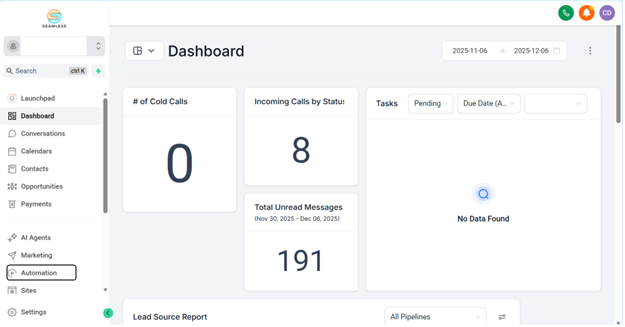
Turn On Starter Automations
What it is:
Starter automations are pre-built workflows to help you handle leads, bookings, and missed calls.
Why it matters:
They give you quick wins without needing to build everything from scratch.
How to complete it:
Go to Automations or Workflows inside Seamless.

Look for 'Starter' or 'Recommended' workflows.

Open each workflow and review the steps.

Turn the toggle ON to activate the workflow.

Common errors & solutions:
Error: Automation not firing – Solution: Make sure triggers match your forms, calendars, or numbers.
Connect Your Domain

What it is:
Connecting your domain lets you host funnels and websites on your branded URL.
Why it matters:
This builds trust with visitors and improves deliverability and SEO.
How to complete it:
Go to Settings > Domains.


Click 'Add New Domain'.

Enter your domain name (e.g., yourbrand.com).


Follow the DNS instructions to add A and CNAME records in your domain provider.
Return to Seamless and click 'Verify' once DNS changes have propagated.
Common errors & solutions:
Error: Domain not verifying – Solution: Double-check that DNS records exactly match the instructions and wait up to 24 hours.
Complete the Automation Assessment
You can just click the link:
https: //links.seamlessautomation.co/widget/survey/92TGlC9iWZX9t4YGlm2p
What it is:
This is a guided checklist or form that helps identify which automations your business needs most.
Why it matters:
It ensures you focus on high-impact workflows first, rather than trying to set up everything at once.
How to complete it:
Open the Automation Assessment link or section inside Seamless.
Answer questions about your current lead flow, follow-up, and booking process.
Review the recommended workflows based on your answers.
Prioritize setting up the top 1–3 automations first.
Common errors & solutions:
Error: Not sure which automations to choose – Solution: Start with lead capture, follow-up, and missed call text-back.
3. Account & Profile Setup

Editing Business Profile
To edit your business profile:
- Go to Settings > Business Profile.
- Update your business name, address, email, phone, and website.


- Add any legal details such as company registration or tax information if needed.
- Click Save.

These details may appear in email footers, invoices, and other system areas.

Brand Settings (Logos, Colors)

Your brand settings control how your funnels, emails, and pages look:
- Navigate to Settings > Branding or a similar section in Seamless.

- Upload your primary logo and any alternative or icon logos.

- Choose your primary and secondary brand colors.
- Set default fonts if available.

- Save/Continue changes.

These settings help keep your brand consistent across all assets.

Adding Team Members

To add team members:
- Go to Settings > Team or My Staff.
- Click 'Add User' or 'Invite Team Member'.

- Enter their name, email, and role.

- Assign appropriate permissions (e.g., admin, sales, support).


- Save/Send the invite.

Team members will receive an email with login instructions.

Permissions
Permissions control what each user can see and do inside Seamless:
- Admins can access all settings, automations, and billing.
- Sales roles may only see contacts, pipelines, and conversations.
- Support roles may handle tickets, tasks, or communication.
Review user roles regularly to keep your account secure and organized.
Setting Business Hours/Time Zone

Accurate business hours and time zone ensure your calendar and automations fire at the correct times:
- Go to Settings > Business Profile and Calendar Settings.
- Set your local time zone.

- Define your standard business hours (e.g., Monday–Friday, 9am–5pm).


- Save or Update your settings.

These hours can be used for booking rules, notifications, and workflows.
4. Email & SMS Setup

Connecting Email
To connect your email:
- Navigate to Settings > Email Services.
- Select your email provider (Google, Outlook, or custom SMTP).

- Follow the prompts to authenticate or enter server details.

- Save and Send a test email to verify everything is working.

Once connected, Seamless can send one-to-one and automated emails from your business address.
SMS Setup

To enable SMS:
- Go to Settings > Phone Numbers or SMS.
- Purchase or connect a phone number if required.

- Set your default sending number.

- Test by sending an SMS to your own phone.


SMS is powerful for reminders, follow-up, and missed call text-back.
DNS Help
DNS records connect your domain to Seamless for email and websites:
- SPF, DKIM, and DMARC help email providers trust your messages.
- A records and CNAME records point your domain to your funnels.
If you are unsure how to edit DNS, your domain provider’s help docs or support team can assist. Always copy records exactly as provided by Seamless.
Improving Deliverability
To keep your emails out of spam:
- Warm up your email by gradually increasing send volume.
- Use a real reply-to address.
- Avoid spammy words in subject lines.
- Keep your contact list clean and remove invalid addresses.
- Authenticate your domain with SPF, DKIM, and DMARC.
Domain Verification

Domain verification confirms you own the domain used for sending emails and hosting pages:
- In Seamless, go to Settings > Domains or Email Authentication.
- Copy the DNS records provided.
- Log in to your domain registrar (e.g., GoDaddy, Namecheap, Cloudflare).
- Add the new records exactly as shown.
- Wait for DNS propagation (up to 24 hours) and click Verify in Seamless.
Best Practices
- Always send from a domain you control.
- Keep emails personalized and relevant.
- Use SMS for time-sensitive reminders like appointments.
- Respect local regulations (such as opt-in and opt-out requirements).
5. Contacts & CRM

Manual Contact Entry
To manually add a contact:
- Go to the Contacts section.
- Click 'Add Contact'.

- Fill in basic details: name, email, phone, and notes.
- Add tags to organize the contact (e.g., 'Lead', 'Client', 'Warm',’Customer).


- Save.

Use manual entry for individual leads or clients you want to add quickly.

CSV Import

To import many contacts at once:
- Export your contacts from your previous system as a CSV file.
- Go to Contacts > Import.

- Upload your CSV.
- Map each column (e.g., First Name, Email, Phone, Tags) to the fields in Seamless.

- Confirm and start the import.
After import, review a few contacts to ensure the data mapped correctly.


Smart Lists
Smart lists are dynamic views of your contacts based on filters:
- You can create a smart list for 'Leads with no recent activity'.
- Another for 'Booked but not closed'.
As contact data changes, they automatically move in and out of these lists.
Segmentation
Segmentation means grouping contacts based on shared traits:
- Source (Facebook Ads, Instagram, Website form).
- Stage in pipeline (New Lead, Qualified, Client).
- Interests or program type.
Good segmentation allows for more targeted follow-up and higher conversion rates.
Tags
Tags are simple labels you attach to contacts:
- Examples: 'Lead', 'Client', 'VIP', 'No-Show'.
- Tags can trigger automations, help in filtering, and make list building easier.
Use clear, consistent tag names to keep your database clean.
Pipelines
Pipelines represent the journey from lead to client:
- Example stages: New Lead, Contacted, Qualified, Proposal Sent, Won, Lost.
You can drag and drop opportunities between stages to track progress.
Automation on Contacts
You can trigger automations based on contact actions or fields:
- When a tag is added.
- When a form is submitted.
- When a stage changes in the pipeline.
Use these triggers to send emails, SMS, tasks, or internal notifications.
6. Automations

What Automations Are
Automations are workflows that run in the background based on triggers. They help you respond to leads, nurture prospects, and manage tasks without manual effort.
Starter Automations
Starter automations are pre-built templates that handle common needs:
- Lead capture follow-up.
- Appointment reminders.
- Missed call text-back.
- Re-engagement campaigns.
You can turn these on with minimal editing and customize over time.
Turning Workflows On/Off
To turn a workflow on or off:
- Go to Automations or Workflows.
- Open the workflow you want to manage.

- Use the toggle or status switch at the top.
- Set it to 'Active' to enable or 'Inactive' to disable.
Always review triggers and actions before activating a new workflow.

Editing Workflows

To edit a workflow:
- Open the workflow from the Automations section.
- Click on any step to edit its settings.

- Adjust messages, delays, conditions, or tags.

- Save changes and test with a sample contact.

Make small changes and test often to avoid unexpected behavior.

Triggers/Actions
Common triggers include:
- Form submitted.
- Tag added.
- Appointment booked.
- Pipeline stage changed.
Common actions include:
- Send email or SMS.
- Add/remove tag.
- Create task.
- Move pipeline stage.
- Wait/delay.
- Send internal notification.
Tips For Beginners
- Start simple with one goal per workflow.
- Test with your own contact details before going live.
- Avoid overlapping automations that send too many messages.
- Document what each workflow does so your team understands the system.
7. Launchpad

What Launchpad Is
Launchpad is your central hub to connect Seamless with your key tools such as Google, Facebook, Instagram, and Stripe. It ensures data flows correctly and that your systems stay in sync.
Connecting Google
To connect Google:
- Open Launchpad.
- Click the Google integration.
- Sign in with your Google account.
- Grant the requested permissions.
- Confirm the status shows as 'Connected'.
This allows calendar and email syncing depending on your setup.

Connecting Facebook
To connect Facebook:
- In Launchpad, click Facebook.
- Log in to your Facebook account.
- Choose the correct Business Manager, Ad Account, and Page.
- Approve permissions.
- Confirm it's connected.
This enables lead forms, messages, and ad tracking to sync with Seamless.
Connecting Instagram
To connect Instagram:
- Ensure your Instagram is a Business or Creator account linked to your Facebook Page.
- In Launchpad, click Instagram.
- Follow the steps to connect via Facebook.
- Confirm it's connected.
This allows DM management and lead capture from Instagram inside Seamless.
Connecting Stripe

To connect Stripe:
- In Launchpad, click Stripe.
- Log in to your Stripe account or create a new one.
- Approve the connection.
- Confirm the account is connected for payments.
This enables you to collect payments, sell products, and manage subscriptions.
Troubleshooting Integrations
- If an integration disconnects, click 'Reconnect' and reauthorize.
- Check if you have admin access to the ad accounts or pages.
- Make sure pop-up blockers are disabled when connecting.
- If issues persist, log out and log back into your accounts before retrying.
8. Domain Setup

Why Connecting a Domain Matters
Connecting your domain lets you host funnels and websites on your own branded URL. This improves trust, branding, SEO, and email deliverability when sending from your domain.
Step-by-Step Setup
- Go to Settings > Domains in Seamless.
- Click 'Add New Domain'.

- Enter your domain (e.g., yourbrand.com) or subdomain (e.g., go.yourbrand.com).

- Follow the provided DNS instructions.
- Add the required records in your domain registrar.
- Click 'Verify' in Seamless once changes are saved.

A-Record Explanation
An A record points your domain or subdomain to an IP address. In this case, it tells the internet that your website content is hosted by Seamless/Go High Level.
CNAME Explanation
A CNAME record points one domain name to another. It's often used for subdomains like 'go.yourbrand.com' and helps route traffic correctly.
Verifying Domain
After adding DNS records:
- Wait for DNS propagation (often a few minutes but can take up to 24 hours).
- Go back to Settings > Domains.
- Click 'Verify' next to your domain.
- Once verified, your funnels and sites can be published to that domain.
Common DNS Errors & Fixes
- Domain not verifying: Double-check you added all records exactly as shown.
- Wrong record type: Make sure you created an A record or CNAME, not TXT or MX.
- Multiple conflicting records: Remove old records that conflict with your new ones.
- Propagation delay: Wait more time and try verifying again later.
9. Website & Funnels

Difference Between Website & Funnel
A website is built for browsing and information. It usually has multiple pages and navigation.
A funnel is built for conversion. It guides visitors through a specific journey, such as opting in or booking a call, with minimal distraction.
Editing Pages
To edit a page:
- Go to Sites or Funnels in Seamless.
- Select the site or funnel you want to edit.

- Click 'Edit Page'.

- Use the drag-and-drop builder to change text, images, buttons, and sections.

- Save your changes when finished.


Mobile Optimization
Always check how your pages look on mobile:
- In the page builder, switch to mobile view.
- Adjust font sizes, spacing, and button placement.
- Hide desktop-only sections if needed.
- Ensure forms and CTAs are easy to tap on a phone.
SEO Settings
To improve SEO:
- In the page settings, add a page title and meta description.
- Use keywords that match what your ideal clients search for.
- Add alt text to important images.
- Use clean URLs that describe the content (e.g., /free-consultation).
Tracking Code
To add tracking (e.g., Facebook Pixel, Google Analytics):
- Copy your tracking code from the ad or analytics platform.
- In Seamless, open your site or funnel settings.
- Paste the code in the header or tracking section.
- Save and republish.
- Use the respective platform’s tools to confirm tracking is active.
Publishing
To publish a page or funnel:
- Make sure your domain is connected.
- In your site or funnel, assign a domain or path.
- Click 'Save' and 'Publish'.
- Visit the live URL to confirm everything loads correctly.
How to Build Landing Pages
A high-converting landing page usually includes:
- Clear headline stating the value.
- Short explanation of who it’s for.
- Benefits in bullet points.
- Simple form or booking CTA.
Start with a template, customize the text for your offer, and keep the design clean and focused.
10. Pipelines & Opportunities

What Pipelines Are
Pipelines are visual flows that show where each lead is in your sales process. Each card in the pipeline is called an opportunity and represents a potential deal or client.
Creating Stages
To create pipeline stages:
- Go to Settings > Pipelines or Opportunities.
- Create a new pipeline or edit an existing one.

- Add stages like New Lead, Contacted, Qualified, Proposal Sent, Won, Lost.

- Save/ Create the pipeline.

Updating Leads
To update a lead in the pipeline:
- Go to the Pipelines view.
- Find the opportunity card.
- Drag and drop the card into the next stage.
- Or open the card and update details such as value, source, or notes.
Notifications
You can set notifications for pipeline events:
- When a new lead is created.
- When a stage changes.
- When a deal is marked as Won or Lost.
Configure these in workflow actions or notification settings.
Automating Pipeline Movement
Automations can move opportunities between stages:
- When an appointment is booked, move from New Lead to Booked.
- When a contract is signed or payment is made, move to Won.
Use workflow actions like 'Update Opportunity' to manage these movements.
11. Calendar Setup

Connecting Calendars
To connect your external calendar:
- Go to Settings > Calendars.
- Connect Google Calendar or other supported providers.

- Choose which calendar Seamless should read/write.
- Save your settings.
This sync prevents double-booking and keeps everything in one place.

Setting Availability
To set your availability:
- Open your calendar inside Seamless.
- Edit the calendar you want to use for bookings.
- Set available days and times.
- Add buffer times before and after meetings if needed.
- Save.
Your booking page will only show times within these windows.
Booking Links
Each calendar generates a booking link:
- Go to your calendar list.
- Copy the public booking link.
- Share it in emails, SMS, or on your website.
When someone books, the event will appear in your Seamless and connected calendar.
Preventing Conflicts
To avoid double-booking:
- Ensure your external calendar is connected.
- Enable 'Check for conflicts' in calendar settings.
- Mark personal or busy events properly in your main calendar.
Seamless will block off times that are already booked.
Automation After Booking
You can trigger automations when a booking is made:
- Send immediate confirmation via email/SMS.
- Send reminders 24 hours and 1 hour before.
- Tag the contact as 'Booked Call'.
- Move the opportunity to a 'Booked' pipeline stage.
Use calendar-based triggers in workflows to set this up.
12. Payments & Invoicing
Connecting Stripe
To accept payments:
- Connect Stripe via Launchpad or Payment Settings.
- Log in to your Stripe account.
- Approve all requested permissions.
- Confirm it shows as connected.
Creating Products
To create products:
- Go to Payments or Products.
- Click 'New Product'.
- Enter a product name, price, and description.
- Choose whether it's a one-time or recurring charge.
- Save the product.
Creating Subscriptions
For recurring billing:
- Create a product set to recurring.
- Set billing frequency (e.g., monthly, yearly).
- Connect the product to a funnel or payment link.
- Test with a small transaction if needed.
Payment Links
Payment links let you collect payment without a full checkout page:
- In Payments, create or select a product.
- Generate a payment link.
- Copy and send the link by email, SMS, or DM.
When clients pay, their payment details and contact record are updated in Seamless.
Invoices
To create invoices:
- Go to Invoices (if enabled in your account).
- Create a new invoice and select a contact.
- Add line items with product names and amounts.
- Set due dates and payment terms.
- Send the invoice via email.
Payments will sync back to the contact record.
Failed Payment Recovery
To recover failed payments:
- Set up a workflow triggered by failed payments.
- Send an email/SMS notifying the client and sharing an updated payment link.
- Optionally restrict access to services until payment is updated.
Automating this process reduces revenue loss from expired cards or failed charges.
13. Recommended Workflows
Lead Capture Workflow
Goal: Turn new leads from forms or landing pages into engaged conversations.
Setup steps:
- Create or select a form or landing page.
- In Automations, create a new workflow.
- Set trigger: 'Form Submitted' or 'Page Form Submitted'.
- Actions:
- Tag contact as 'New Lead'.
- Send immediate thank-you email.
- Send SMS acknowledging their request if you have their phone.
- Notify you or your team of the new lead.
- Add contact to a nurture sequence if desired.
Sales Follow-Up Workflow
Goal: Make sure every lead is followed up with consistently over several days.
Setup steps:
- Trigger: Tag added 'Sales Lead' or stage 'New Lead'.
- Actions:
- Day 0: Send intro email.
- Day 1: Send SMS checking in.
- Day 3: Send value email with a tip or resource.
- Day 5: Reminder email with booking link.
- Notify you if they reply at any point and stop the sequence.
Missed Call Text-Back
Goal: Automatically text anyone who calls and doesn’t reach you.
Setup steps:
- Trigger: 'Missed Call' on your Seamless number.
- Action: Send SMS like, 'Sorry we missed your call, how can we help? You can also reply here.'
- Optionally tag contact as 'Missed Call'.
- Notify you or your team to follow up manually if needed.
Abandoned-Booking Automation
Goal: Recover leads who start booking but don’t complete the appointment.
Setup steps:
- Trigger: 'Calendar Form Submitted but no appointment created' or a similar condition.
- Actions:
- Send email or SMS asking if they had trouble booking.
- Share the booking link again.
- Optionally notify your team to reach out personally.
- Stop the workflow if they successfully book.
Re-Engagement Nurture Sequence
Goal: Wake up old leads who never converted.
Setup steps:
- Create a smart list of leads with no activity for 30–90 days.
- Trigger: Added to 'Dormant Leads' list or a specific tag.
- Actions over 7–14 days:
- Send value-based emails with tips, stories, or case studies.
- Offer a low-friction call or audit.
- Remove them from the sequence if they reply or book.
14. Troubleshooting & FAQ
Email Not Sending
- Check if your email provider is connected in Settings.
- Confirm sending domain is verified.
- Make sure the 'From' address matches your connected domain.
- Review suppressed or bounced emails in your email provider.
DNS Not Verifying
- Confirm you added the exact records provided, with no extra spaces.
- Check you used the correct record type (A, CNAME, or TXT).
- Wait up to 24 hours for DNS propagation.
- Remove old conflicting records if necessary.
Automations Not Firing
- Make sure the workflow is set to 'Active'.
- Confirm the trigger conditions are met (correct form, tag, or event).
- Check for filters that may exclude certain contacts.
- Test with your own contact details to verify behavior.
Form Not Submitting
- Confirm all required fields are clearly labeled.
- Test the form on desktop and mobile.
- Check that the form is connected to a valid funnel or page.
- Ensure there are no conflicting scripts on the page.
Calendar Issues
- Verify your external calendar is connected.
- Check that your availability is correctly set.
- Ensure the time zone is correct.
- Test the booking link in an incognito window.
“Domain Not Found” Errors
- Confirm your domain is correctly typed in Settings.
- Check that DNS records are active and not expired.
- Make sure the domain is pointing to the correct IP or CNAME.
- Contact your domain registrar if the domain itself has issues.
Contact Import Problems
- Make sure your CSV is properly formatted (UTF-8, comma-separated).
- Include headers in the first row.
- Map each column to the correct field during import.
- Remove special characters that may cause errors.